v1.0
- Public tool page prepared for review-comment marker imports.
- Added point marker and duration marker usage guidance.
 Freelancer Tools
Guide
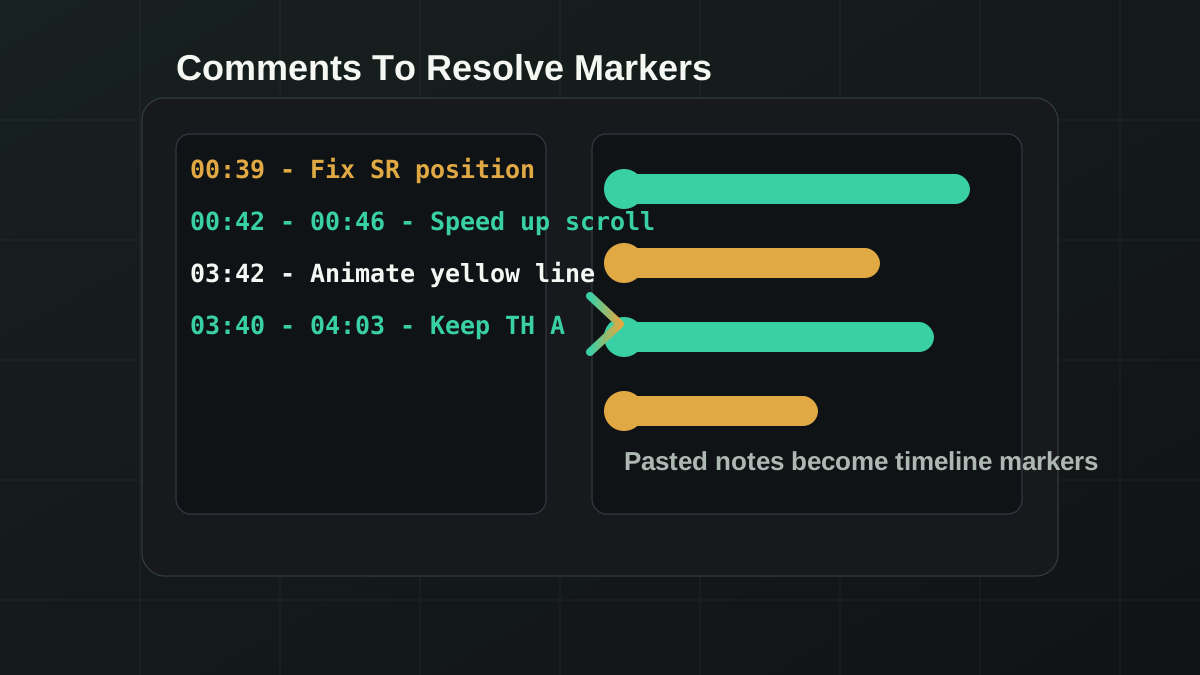
What it does: turns pasted timecoded review comments into Resolve timeline markers. Single timestamps become point markers; start-end ranges become duration markers.
00:39 - Single marker comment00:42 - 00:46 - Ranged marker comment01:02:03 - HH:MM:SS also worksSetup
.lua file.Windows: %APPDATA%\Blackmagic Design\DaVinci Resolve\Support\Fusion\Scripts\Utility
macOS: ~/Library/Application Support/Blackmagic Design/DaVinci Resolve/Support/Fusion/Scripts/Utility
Updates